
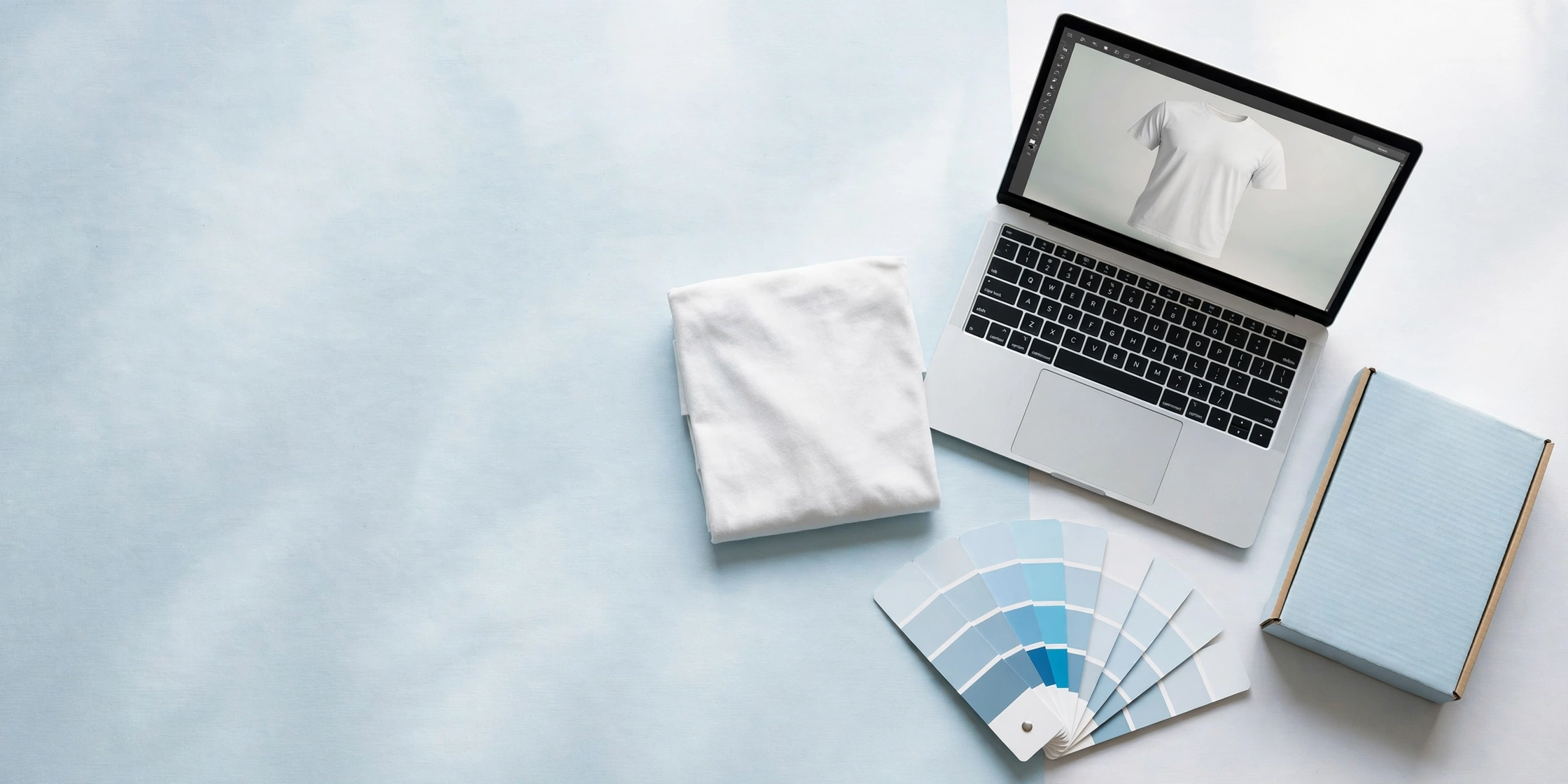

A new product is hard to sell when people cannot see it — a flat design file does not show how a t-shirt, a box, or a book will look in real life. A product mockup solves this: it places your design on a real-looking product, so people can see it before it is made. In this guide, you will learn what a product mockup is and how to use one, in simple English.
By the end of this guide, you will know what a product mockup is, how it differs from a prototype, which type fits your product, and how to make one in four simple steps — without design skills.
Free Creator AI Starter Kit
Get free AI prompts, tools and templates to kick-start your content.
Get the Free Starter KitWhat Is a Product Mockup?
A product mockup is a picture of your product that looks real, but is made on a computer: your design — logo, label, or print — placed on a photo or a 3D model, like a print on a shirt or a label on a box. A mockup is not the real product — it is a preview, used to show an idea, test a design, or sell before you make it. Shops use mockups on product pages, social media, and ads, because a real-looking photo sells better than a flat design file.
Mockup vs Prototype: What Is the Difference?
A mockup shows how a product looks; a prototype is a real working sample you can touch and test. A mockup is a picture made in minutes on a computer. A prototype is a real object that takes more time and money, used to test size, material, and how it works. For most small businesses, a mockup is enough at the start.
Why a Mockup Helps Your Product Sell
People buy what they can see — a mockup shows how a shirt looks when worn or a box looks on a shelf. It helps in three ways: it builds trust, because a clean mockup makes a new product look ready; it saves money, because you can test five designs without printing five real products; and it helps you sell early, because you can take orders before spending on stock.
5 Types of Product Mockups
Start with the type that matches your product. Each type shows your design in a different way.
Type 1: Packaging mockup
A packaging mockup shows your label on a box, a bag, a bottle, or a jar — the right type for food, soap, tea, and any product that comes in a pack.
Type 2: T-shirt and clothing mockup
A clothing mockup shows your print on a t-shirt, hoodie, or cap — the most common type for print-on-demand shops.
Type 3: Book and print mockup
A book mockup shows your cover on a real book — also good for notebooks, planners, and posters.
Type 4: Digital screen mockup
A screen mockup shows your design on a phone, laptop, or tablet — right for apps, websites, and digital products.
Type 5: 3D product mockup
A 3D mockup is made from a 3D model: turn it, change the light, and see it from every side. It looks the most real, but takes more time and skill.
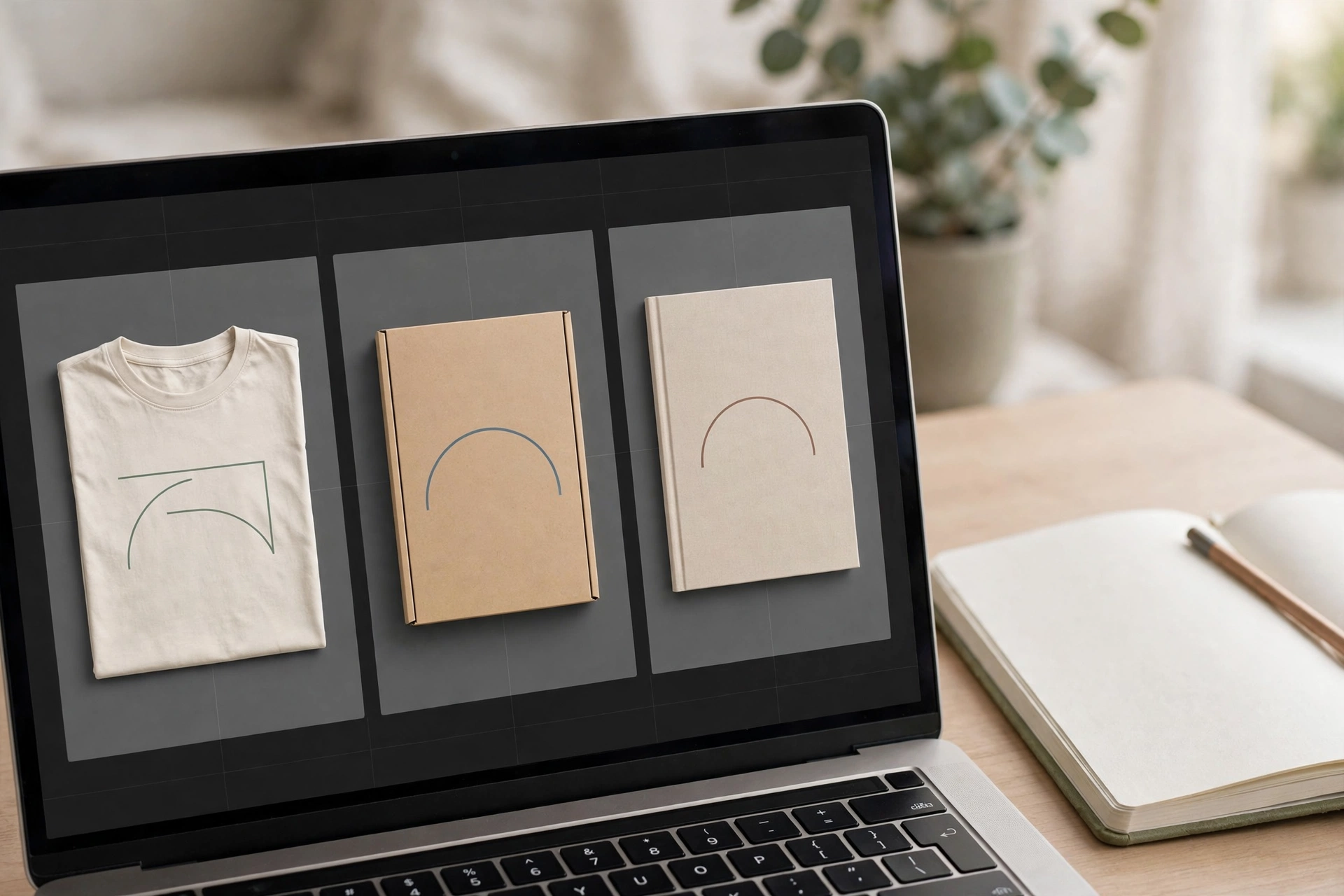
How to Use a Mockup in 4 Simple Steps
Step 1: Pick your product photo or design
Start with your design file — logo, label, or print — clear and in a good size. A blurry design will look blurry on the mockup too.
Step 2: Pick a mockup template
Pick a mockup template that fits your product — many free tools have ready templates with a simple background.
Step 3: Place your design
Upload your design and place it right — the print sits in the middle of a shirt chest, the label on the front of a box. It should follow the shape of the product, not float above it.
Step 4: Download and use it
Download the mockup as a clear PNG or JPG, with a clear name like shirt-mockup-blue.png. Check it on your phone.

5 Simple Rules for Clean Mockups
- One product per mockup — not five in one picture.
- Keep the background simple, so the focus stays on your product.
- Use good light. Bright, even light makes the mockup look real.
- Match the size — not too big, not too small.
- Check it on a phone — most buyers will see it there first.
If you want ready designs to place in a mockup, look at the Canva templates in the Bytechhatch shop.
Common Mistakes to Avoid
- The wrong mockup type. A book mockup does not sell a t-shirt.
- A design that is too big. A logo that covers the whole shirt looks wrong — keep it normal size.
- A busy background. A messy room takes the focus away.
- A low-quality download. A small, blurry mockup looks fake.
- Showing a mockup as a real photo. A mockup is a preview, not a real photo.
Free and Paid Mockups: What to Know
Free mockup tools are enough for most beginners — many have ready templates, and you can download the result for free. Some add a watermark or limit the download size, so check the tool’s own page. Paid tools give more templates and larger downloads with no watermark — try free first, and pay only if you make mockups every day.
For free files, see the free downloads page, which includes the Creator AI Starter Kit. The guide to how to use Canva templates shows how to prepare a clean design for a mockup.
Frequently Asked Questions (FAQ)
What is a product mockup in simple words?
A product mockup is a real-looking picture of your product, made on a computer — your design placed on a photo or a 3D model.
Can I make a mockup for free?
Yes. Many free tools have ready mockup templates — upload your design, place it, and download the result.
Is a mockup the same as a prototype?
No. A mockup is a picture of how a product looks; a prototype is a real working sample you can touch and test.
Do I need design skills to make a mockup?
No. With a ready template, you only upload your design, move it to the right place, and download it.
What to Do Next
Make one mockup today: pick one product and one free mockup template, place your design, download it, and post it. If you want ready sets, visit the Bytechhatch shop and look at the Canva template sets.

