
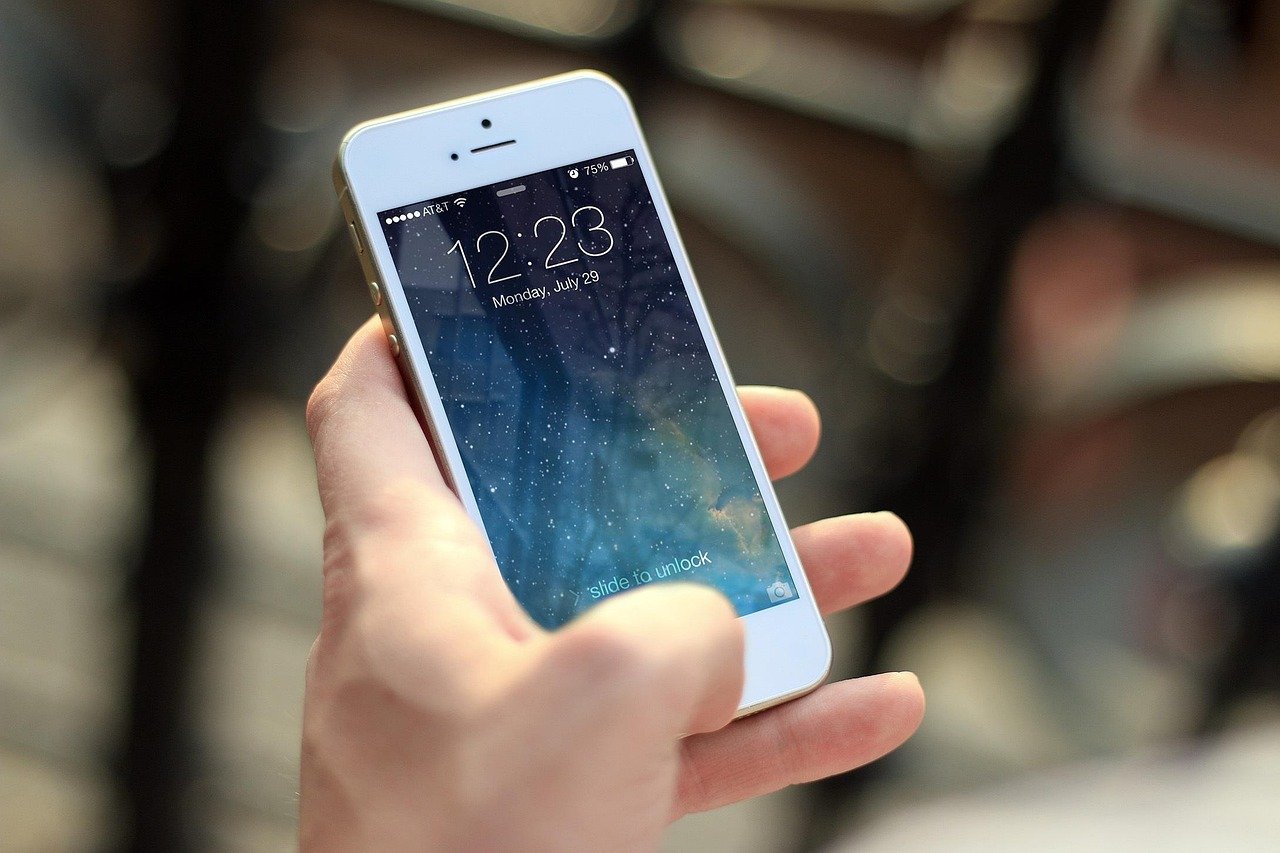

Your phone says storage is full at the worst moment: mid-video, mid-update, or when you need to install one app right now. Apps will not update, the camera refuses to save a photo, and every tap feels slower. Do not panic, and do not start deleting random folders.
A phone storage full warning is usually fixed with a few safe steps, in the right order. This guide works for Android and iPhone. It starts with the safest fixes, so you free space without losing photos, chats, or anything you need.
Free Creator AI Starter Kit
Get free AI prompts, tools and templates to kick-start your content.
Get the Free Starter KitWhy Is Your Phone Storage Full?
A phone never gives you its full advertised storage. Android itself and the apps that came with the phone already use a good part of it before you add anything. A 128 GB phone never gives you a full 128 GB to use.
After that, the space goes to four things: photos and videos, apps and their data, chat media from WhatsApp and other apps, and downloads you forgot about. Videos grow fastest, because one minute of video can take far more space than a hundred photos.
A good rule is to keep about 10 to 15 percent of your storage free. Below that, updates can fail, the camera can stop saving, and the phone feels slower. The fixes below get you back above that line.
Fix 1: Check What Is Taking the Space
Do not delete at random. Look first.
On Android: open Settings, then Storage. You will see a bar showing what is using space, and a list of categories such as photos, videos, apps, and files. On Pixel and many other phones, there is a “Free up space” button that opens the cleanup tool.
On iPhone: open Settings, tap General, then iPhone Storage. You will see the same kind of bar, plus Apple’s recommendations and a list of apps with the storage each one uses. Start with the biggest category, because that is where the space is.
This one check tells you whether photos, apps, or chat media are the problem, so you fix the right thing first. It is the fastest way to find what made your phone storage full.
Fix 2: Use the Built-In Cleanup Tool
Both Android and iPhone have a free cleanup tool already on the phone, and it is the first thing to try when you see the phone storage full message. Use it before you delete anything by hand.
On Android: go to Settings, then Storage, then Free up space. It lists photos, videos, and apps you have not used recently. Pick a category, tap Select files, choose what to delete, and tap Move files to Trash. You can also open Files by Google, tap the Clean tab, and review its cards for junk files, duplicate files, old screenshots, large files, and unused apps. Tap Select and free up on a card, tick only what you recognise, and confirm.
On iPhone: the iPhone Storage screen shows recommendations at the top. One common recommendation is Offload Unused Apps. Turn on the recommendations Apple shows you, because iOS tells you exactly what each one will do before it does it.
Note that deleted files usually sit in the Trash for 30 days. Space is only freed after you empty it. On Android, open Files by Google, tap the menu, tap Trash, and delete everything permanently. On iPhone, empty Recently Deleted in Photos and Messages as well.
Fix 3: Back Up Photos, Then Remove the Phone Copies
Photos and videos are usually the largest item on a phone. The safe way to free that space is to back them up first, then remove the copies on the phone.
On Android with Google Photos: open Google Photos, and use “Free up space on this device”. It removes only the phone copies of photos and videos that are already backed up. The backed-up copies stay in the app when you are online. Every Google account gets 15 GB of free storage, and a large photo library can fill that, so check your Google storage too. You can also turn on Smart Storage in Settings, then Storage, then Free up space, so backed-up photos and videos are cleared automatically when storage is nearly full.
On iPhone with iCloud Photos: turn on Optimize iPhone Storage in Settings, then your name, then iCloud, then Photos. Full-resolution originals live in iCloud, and smaller versions stay on your phone. Apple gives every account 5 GB of iCloud storage for free, which a large photo library exceeds quickly.
Two warnings matter here. First, deleting a backed-up photo in Google Photos deletes it everywhere, including the cloud copy, so use the “Free up space” tool instead of deleting by hand. Second, iCloud storage and iPhone storage are two separate pools. Buying more iCloud storage does not add space to the phone itself. An iCloud backup is a copy of what is on your phone. It protects your data, but it does not remove anything from the device.
Fix 4: Clear Cache, Not Storage
Big apps such as browsers, social media, and streaming apps build up a cache of temporary files. Clearing it is safe and can free a surprising amount of space.
On Android: open Settings, then Apps, choose the app, tap Storage, then tap Clear cache. Do this for your browser, social apps, and streaming apps first, because they pile up the most temporary files.
Be careful with the button next to it. Clear cache deletes temporary data, so the app may be a little slower the next time you open it. Clear storage, which Samsung calls Clear data, permanently deletes all of the app’s data, including sign-ins and offline files. Google’s own help page says to try deleting the data inside the app first, and to use Clear storage only when you mean it.
On iPhone: there is no manual cache button. Apple says the iPhone removes cached and temporary files on its own when it needs space, and you cannot delete them yourself. The System Data category is managed by iOS, so do not chase it. Fix photos, apps, and messages instead.
Fix 5: Offload or Archive Apps You Rarely Use
Apps you do not open still take space. Games, video editors, and navigation apps with offline maps are often the largest items on the list.
On Android: newer versions can archive apps you do not use often. Archiving removes the app but keeps your data, so you can reinstall it later and pick up where you left off. You can also uninstall apps you are done with. Check Settings, then Storage, then Apps, and sort by size to find the biggest ones first.
On iPhone: tap an app in the iPhone Storage list, then tap Offload App. Offloading removes the app but keeps its documents and data. Reinstalling puts it back with its data. Delete App on the same screen removes the app and its data, so use Delete only for apps you are sure you will not use again. You can also turn on Offload Unused Apps automatically in Settings, then Apps, then App Store, so the iPhone does this for you when space runs low.
Start with large apps you rarely open, such as games, airline apps, or streaming apps you can sign back into.
Fix 6: Clean Up Chat Media
Chat apps are the hidden space hog. WhatsApp alone can hold gigabytes of photos, videos, and voice notes sent in groups you forgot about.
On Android: open WhatsApp, go to Settings, then Storage and data, then Manage storage. It shows large files and media from chats, so you can delete the biggest items first. Do the same for any other chat app you use a lot.
On iPhone: open a conversation, tap the contact or group name, and look at the Photos and attachments. Delete the large videos you no longer need.
Check your downloads too. Old PDFs, installers, and files you saved “just in case” add up. On Android, look in the Downloads folder in Files by Google. On iPhone, check Files, then Downloads, and remove what you have finished with. Also remove videos downloaded for offline viewing inside streaming apps, and delete offline maps you no longer need.

Fix 7: Empty the Trash and Recently Deleted
This is the step most people forget, and it is why a phone storage full warning sometimes stays after deleting things.
On Android, files you remove first go to the Trash, where they stay for 30 days. Space is only freed after you empty it. Open Files by Google, tap the menu, tap Trash, and delete everything permanently.
On iPhone, deleted photos and deleted messages stay in Recently Deleted for up to 30 days. Go to Photos, then Collections, then Recently Deleted, and remove them there. Do the same in Messages. Items removed from Recently Deleted cannot be recovered, so check the folder once before you empty it.
Empty the trash first, then check whether the phone storage full message is gone. After this step, restart the phone. It takes a minute, and it lets the system recount the free space properly.
What Should You Never Delete?
Some things are safe to remove, and some are not. A phone storage full warning is not a reason to delete system files. Safe to remove: cache, junk files, duplicates, old screenshots, and photos that are already backed up. Remove with care: app data, chat media, and downloads, because you may not be able to get them back. Leave alone: system files and anything you do not recognise.
Never delete the only copy of a photo or video. Before you delete anything from Photos, confirm it exists somewhere else: in a cloud backup, on a computer, or on another device. And never use a random “cleaner” app — the built-in tools do the job, and third-party cleaners often delete things you need.
How Do You Keep It From Filling Up Again?
Once the phone is clean, keep it that way with three small habits. First, check storage once a month, the same way you check your battery. Second, turn on the automatic tools: Smart Storage on Android, and Offload Unused Apps on iPhone. Third, move photos to a backup regularly, instead of waiting for the warning to appear.
If you want more simple tech help, our Free Downloads page has free guides, and our beginner’s guide to How to Use ChatGPT shows how AI can help with everyday tasks like writing and planning.
Frequently Asked Questions
Will clearing cache delete my photos?
No. Clearing an app’s cache only removes temporary files, such as thumbnails and saved web pages. The app simply rebuilds them, and it may open a little slower the next time. Clear storage is the button that deletes everything, including sign-ins and offline files, so do not tap it by mistake.
Should I offload or delete an app on iPhone?
Offload an app you will want back later. Offloading removes the app but keeps its documents and data, so reinstalling puts it back as it was. Delete an app you are done with, because deleting removes the app and its data together.
Does buying more iCloud storage fix a full iPhone?
No. iCloud storage and iPhone storage are two separate pools. Buying more iCloud space gives you more room in the cloud, but it does not add space to the phone itself. What helps is iCloud Photos with Optimize iPhone Storage turned on, which keeps small versions on the phone and full originals in iCloud.
Why is my phone storage full even after I delete photos?
Deleted items usually sit in the Trash or Recently Deleted for 30 days, and they still take up space until you empty those folders. On Android, empty the Trash in Files by Google. On iPhone, empty Recently Deleted in Photos and Messages. Then restart the phone so the system recounts the free space.
How much free space should I keep on my phone?
Try to keep about 10 to 15 percent of your storage free. Below that, updates can fail, the camera can stop saving photos, and the phone feels slower. Check storage once a month so the warning never surprises you.
The Bottom Line
A phone storage full warning is not a reason to buy a new phone. Check what is using the space, use the built-in cleanup tool, back up your photos before you remove the phone copies, clear cache instead of storage, offload the apps you rarely open, clean your chat media, and empty the Trash. Do it once a month, and the warning will stop surprising you. Once the phone storage full message is gone, the monthly check above keeps it that way.

