
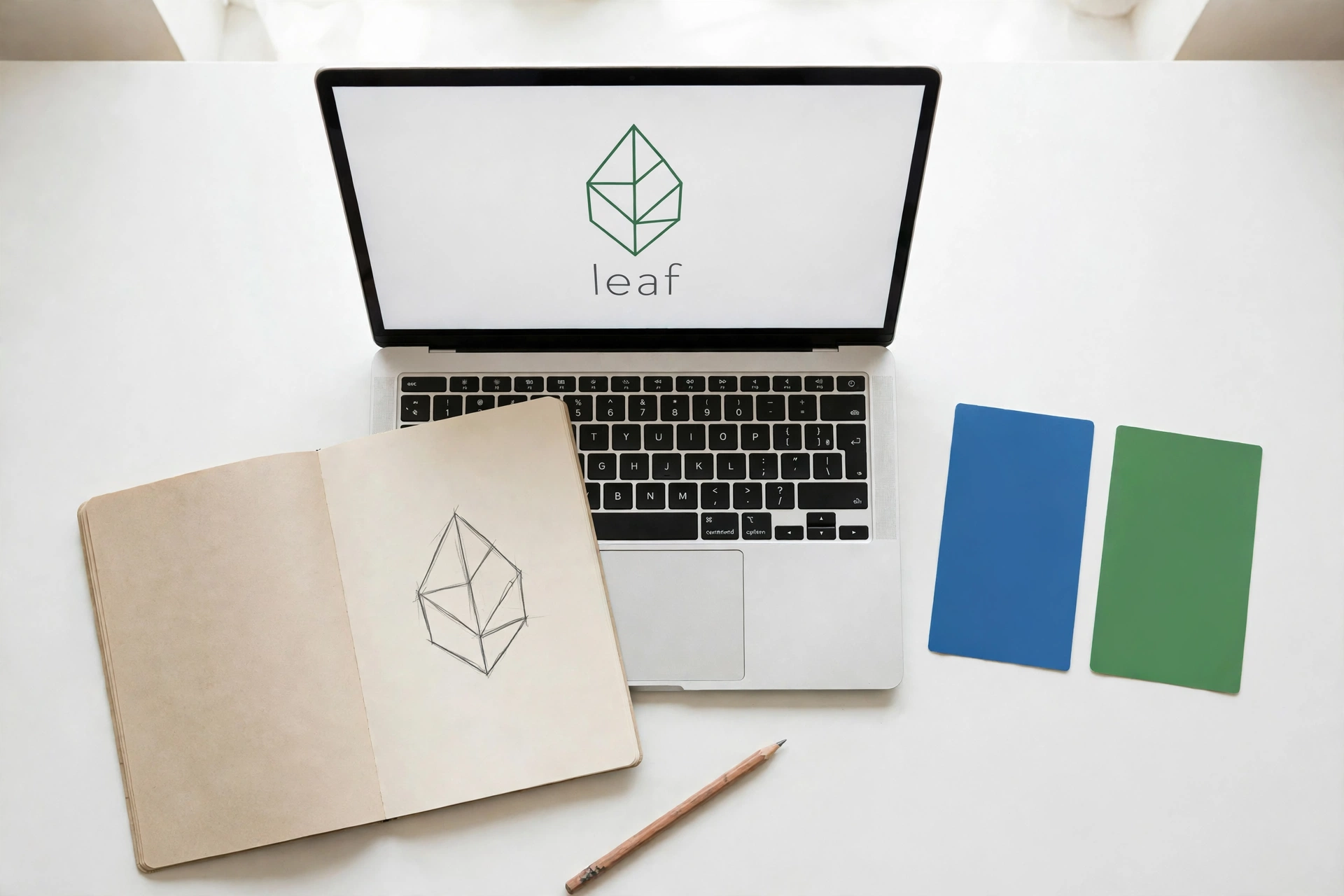

A logo is the first thing people see of your business. It sits on your shop, your social media page, your visiting card, and your WhatsApp profile. A good logo does not need to be fancy. A simple logo is often the best logo, because people remember it fast and it looks clean at any size.
This guide shows you how to make a simple logo free, step by step. You need no design degree and no paid software. You only need a free tool, one clear idea, and 30 minutes.
Free Creator AI Starter Kit
Get free AI prompts, tools and templates to kick-start your content.
Get the Free Starter KitWhat Is a Simple Logo?
A simple logo uses one idea, one or two colours, and clean shapes. Think of a small cup for a coffee shop, a leaf for a plant shop, or one bold letter for a personal brand. There is no long text, no thin lines, and no tiny detail that disappears when the logo gets small.
A simple logo works in three places where a busy logo fails. First, it stays clear as a small profile picture. Second, it prints well on a card or a bag. Third, people can draw it from memory after seeing it once. That is the test: if a customer cannot describe your logo in one line, it is too busy.
Before you open any tool, write down three things: your business name, one word for what you sell, and the feeling you want — friendly, premium, playful, or calm. This short note keeps every later choice simple.
Which Free Tool Should You Use?
Not every free logo tool is really free. Many tools let you design for free and then ask you to pay at the download button. Others give you a low-quality file for free and keep the clean file for paying users. So the first step of learning how to make a simple logo free is to check what each tool really lets you download.
Here are five free options, with what their free plan gives you, based on each vendor’s own pricing and help pages as listed in November 2026. Prices and limits change often, so check the official page before you pay for anything.
Canva
Canva is the most flexible free option. Its free plan gives you thousands of logo templates, and you can download your logo as a PNG, JPG, or PDF with no watermark and no download limit. The catch is that two things a logo often needs are paid: a transparent background and an SVG file. On the free plan, your PNG will have a background. That is fine for a social media post, but not ideal for placing your logo on a coloured background. Canva’s own help page says template logos cannot be registered as a trademark, so keep that in mind if you plan to register your brand later.
Adobe Express
Adobe Express lets you create a logo from a text prompt and edit it in a normal design editor. Its free plan lets you download a PNG with a transparent background, which is rare for a free plan. Free AI generations are limited each day, so you may need to wait or plan your tries. The paid plan costs around US$9.99 a month, according to the Adobe Express pricing page, but you do not need it for a first simple logo.
Shopify Logo Maker
Shopify’s free Logo Maker, once called Hatchful, is the simplest option of all. It is template-based, so there are no AI credits to manage, and the download is completely free. The trade-off is limited choice: the styles are simple and the file is a PNG only. It is a good pick for a first logo, a test shop, or a side project, and you can upgrade later when your business grows.
Looka
Looka builds many AI logo ideas from your business name and style picks. You can browse the designs for free, which is useful for ideas. But the download is paid, so Looka is better as an idea tool than as a free logo maker. Use it to see directions you like, then rebuild your favourite direction in Canva for free.
Inkscape
Inkscape is free, open-source vector software for your computer. It is the only tool on this list that gives you a real vector file for free, which means your logo stays sharp at any size, from a visiting card to a shop board. The catch is that you must learn the software first. If you already design on a computer and you want a logo you truly own, Inkscape is worth the learning time.

How to Make a Simple Logo Free in Canva: 7 Steps
Canva is the best starting point for most beginners, so here is the full process, step by step.
Step 1: Open a logo template
Go to Canva and search for “logo”. Pick a blank logo canvas, not a finished template with many elements. A blank canvas keeps you from copying someone else’s design by accident. Set the size to a square, 500 by 500 pixels or larger, so it works as a profile picture too.
Step 2: Pick one idea
Look at your three-word note from the start. Pick one simple shape or symbol that shows what you sell. A bakery can use a wheat stalk. A tuition centre can use an open book. A clothing shop can use one bold letter. One idea is enough. If you add a second symbol, the logo starts to look crowded.
Step 3: Choose one or two colours
Colour changes how people feel about your brand. Blue feels calm and trusted. Green feels fresh and natural. Black feels premium. Pick one main colour and one second colour at most. If you want help with this step, read our guide on how to choose colours for a logo or brand, which explains simple colour pairs that work well together.
Step 4: Pick one clean font
Use one font for your business name, and make it easy to read. Avoid thin script fonts and fonts with many curls, because they break at small sizes. A clean sans-serif font is the safe pick for most small businesses. If you want font ideas, our guide to free fonts for logos lists simple fonts that work well for beginners.
Step 5: Place the name under or beside the symbol
Put your business name under the symbol or beside it, never inside a busy shape. Leave empty space around the logo. Empty space is not wasted space; it is what makes the logo look clean and easy to read.
Step 6: Test it small
Shrink your logo to the size of a phone profile picture. Can you still read the name? Can you still see the symbol? If not, remove one element and test again. A logo that only works at a large size is not finished yet.
Step 7: Download the right file
Download your logo as a PNG for social media and as a PDF for print. Save the original design file in Canva too, so you can change it later. If you need a transparent background, you can use Adobe Express for that step, or keep the white background and use the logo on white cards and posts.
This is the whole process of how to make a simple logo free. Seven steps, one tool, and no payment at the end.
What File Type Do You Need?
A logo is not one file. You need the right file for each place you use it.
- PNG: best for websites, social media, and WhatsApp. It is a normal image file and opens everywhere.
- Transparent PNG: best when your logo must sit on a coloured background or a photo. Free on Adobe Express, paid on Canva.
- SVG: a vector file that stays sharp at any size. Best for print, shop boards, and packaging. Free in Inkscape, paid in most online tools.
- PDF: best for print work like visiting cards and flyers, because printers can open it at high quality.
Save all four when you can. If your free tool only gives you a PNG, that is enough to start. You can remake the vector version later when your business grows.

5 Mistakes Beginners Make
- Too many colours. Three or more colours fight each other. One or two colours look clean and are easy to print.
- Tiny text. A tagline under your logo looks good on a laptop and disappears on a phone. Keep the tagline off the logo, or make the logo text large.
- Copying a famous logo. A logo that looks like a big brand can cause legal trouble and makes your business look like a copy. Use templates as a starting point, then change the shape, colour, and font until it is yours.
- Using a photo inside the logo. Photos get blurry, they do not print well in one colour, and they make the logo heavy. Use a flat shape instead.
- No space around the logo. A logo that touches the edge of a card looks like a mistake. Leave a clear gap on all four sides.
When Should You Pay for a Logo?
A free logo is a good start, not a forever logo. Pay for a designer or a paid plan when one of these is true: you need a vector file for a shop board, you want to register a trademark, or your business has grown and the free logo no longer fits. Until then, a clean free logo serves you well. Many small businesses in Pakistan run for a year or more on a simple Canva logo before they upgrade.
Your Simple Logo Checklist
Before you call your logo done, check each line:
- One idea only, easy to describe in one line.
- One or two colours, no more.
- One clean font, easy to read at a small size.
- Name and symbol do not overlap.
- Logo is clear as a small profile picture.
- You have a PNG and a PDF saved.
- The design is yours, not a copy of another logo.
If you can tick all seven lines, your logo is ready to use. Put it on your shop, your social media page, and your visiting card, and start building your brand.
Want more design help? Our design resources guides cover Canva templates for your small business and clean social media posts that match your new logo. You can also grab free design files from our free downloads page to practise with.
FAQ
Can I make a logo for free and use it for my business?
Yes. Tools like Canva, Adobe Express, and Shopify Logo Maker let you download a logo for free and use it for your business. Check the licence on the tool you use, and note that template logos usually cannot be registered as a trademark.
What is the best free logo maker for beginners?
Canva is the best free pick for most beginners, because it is flexible, has many templates, and downloads a PNG with no watermark. Adobe Express is the best free pick if you need a transparent PNG, and Shopify Logo Maker is the simplest pick if you want a logo in five minutes.
Do I need a transparent background for my logo?
You need it only when your logo must sit on a coloured background or a photo. For a white card, a white post, or a website with a white background, a normal PNG is enough. You can add a transparent version later.

