


A business card is still the fastest way to share who you are. You meet someone, you hand them a card, and they have your name, your work, and your number. But many beginners do not know where to start. Canva solves this: you start with a ready template, change the words, and finish in a few minutes. In this guide, you will learn how to make a business card in Canva, step by step, in simple English.
By the end of this guide, you will know what to put on a business card, how to make one in Canva in five steps, and how to download it in the right size for print — without design skills.
Free Creator AI Starter Kit
Get free AI prompts, tools and templates to kick-start your content.
Get the Free Starter KitWhat Is a Business Card?
A business card is a small card with your name, your work, and how to reach you. People keep it in a wallet or on a desk, so they can find you later. A good card is simple: one name, one job, and one or two ways to contact you.
What to Put on a Business Card
Keep only the details people need. A simple card has:
- Your name — the name people should call you.
- Your business name — if you have one.
- What you do — one short line, for example “3D Designer” or “Home Baker”.
- Your phone or WhatsApp number — the fastest way to reach you.
- Your website or Instagram — one link only, not three.
- Your logo — if you have one.
How to Make a Business Card in Canva in 5 Simple Steps
Step 1: Pick the right size and template
Open Canva and search for “business card”. Canva sets the standard size when you pick a template. Choose a simple template with one clear layout — a plain card is better than a busy one.
Step 2: Add your name and business name
Click on the text and type your name — make it the biggest text on the card. Then add your business name and one short line about what you do. Keep it short — people read a card in two seconds.
Step 3: Add your contact details
Add your phone or WhatsApp number and one link, for example your website or Instagram. Use a small, clear font, and check every digit — one wrong number means a lost customer.
Step 4: Add your logo and brand colours
Add your logo where you use it everywhere else, for example the top or bottom corner. Change the colours to your brand colours — two main colours are enough.
Step 5: Check it and download it
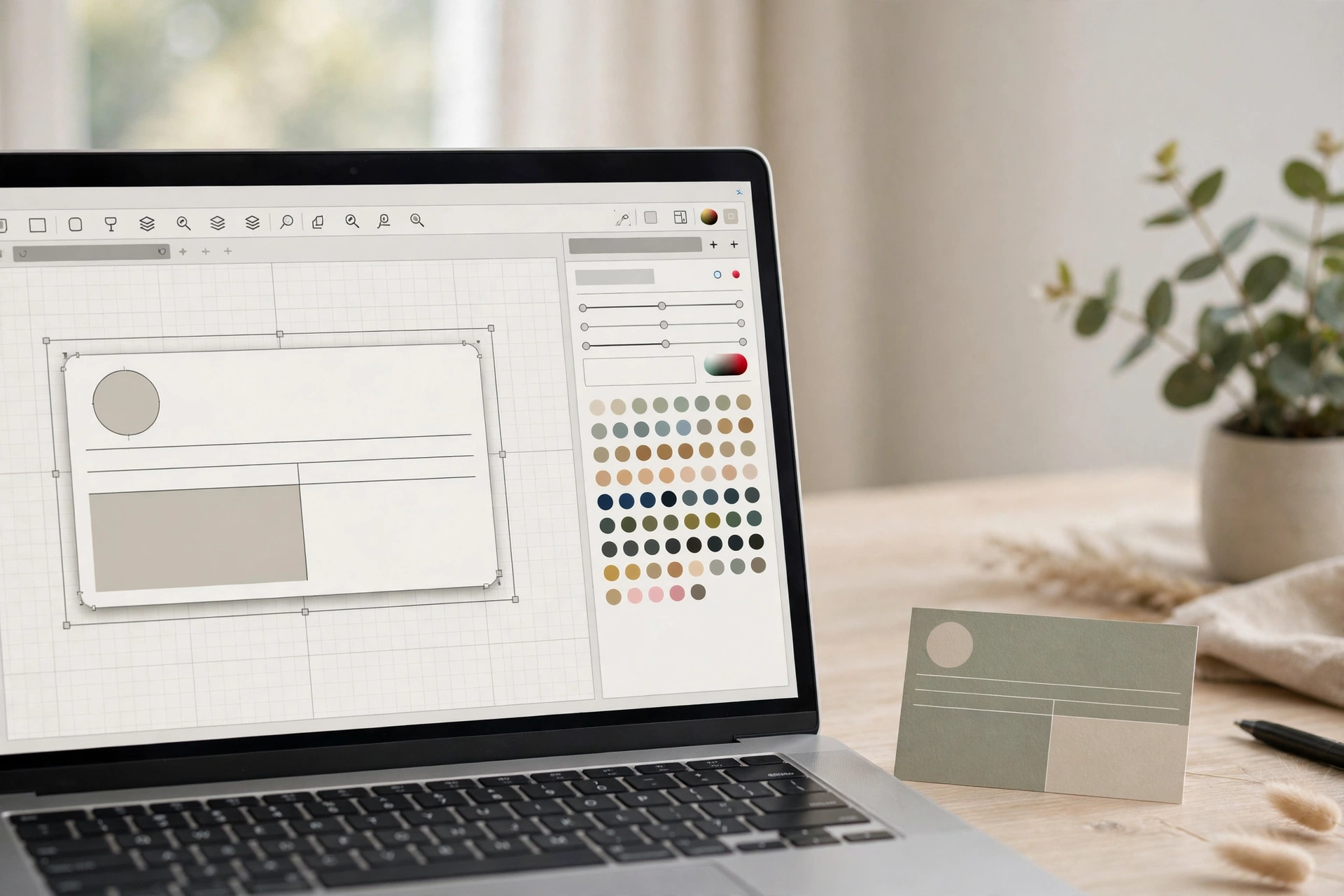
Before you download, zoom out and look at the whole card. Is the name easy to read? Is anything too close to the edge? Leave a small margin — text near the edge can get cut off in print. Then click Share, then Download, and pick PDF Print for a print shop, or PNG for a quick digital share.
How to Design the Back of Your Card
The back of a business card is free space — use it well. Put your logo big in the centre, or one short line about your work, for example “Photorealistic 3D renders for homes and offices”. Do not copy the front side. A QR code for your website or WhatsApp also works on the back — keep it big enough to scan, and test it with your phone before you print.
5 Simple Rules for a Clean Business Card
- One message per card. Your name and what you do — nothing more.
- Leave empty space. Empty space makes the text easy to read.
- Use big text for your name. Small text gets lost in a wallet.
- Use one or two fonts at most. Two fonts are enough for a whole card.
- Check it at real size. Print one copy on plain paper and check you can still read it.

Common Mistakes to Avoid
- Too much text. A card is not a full price list. Keep it short.
- Too many colours. Three colours at most — more colours look messy.
- Text too close to the edge. Leave a margin, or the print shop may cut your words off.
- A blurry logo. Use a clear, high-quality logo file.
- Wrong size for print. Always download in the size Canva sets for a business card, and pick PDF Print for a print shop.
Free and Paid Options: What to Know
Canva has free business card templates and paid ones. Free templates are enough for most small businesses. You can make a clean card with a free template, your own logo, and your brand colours. Paid templates and ready sets save time — many designs in one set, with the same style. If you make cards, flyers, and posts every week, a ready set can be worth it. Try the free templates first.
For free files, see the free downloads page, which includes the Creator AI Starter Kit.
Frequently Asked Questions (FAQ)
Is it free to make a business card in Canva?
Yes. Free templates are enough for a clean card, though some templates and elements need a paid plan.
What size is a business card in Canva?
Canva sets the standard size when you pick a business card template. Use that size and do not change it before you print.
Can I print a business card made in Canva?
Yes. Download it as PDF Print and take it to a print shop. Check the size and margins before you print many copies.
What should I put on the back of my business card?
Put your logo big in the centre, or one short line about your work. A QR code for your website or WhatsApp also works well.
What to Do Next
Make one card today. Pick a simple template, add your name, your work, and your phone number, and download it as PDF Print. Print one copy on plain paper and check it reads well at real size. For more on templates, see the guide to how to use Canva templates. If you want ready sets to work from, visit the Bytechhatch shop and look at the Canva template sets.

