

Note: This guide has no paid or affiliate links right now. If I add any later, I will say so here.
This review is based on the manufacturer’s specifications and retailer listings. I have not physically tested this unit.
Handwriting paper tape labels for kitchen jars, school supplies, storage bins, or small-business product packaging looks messy within days—especially when moisture, cooking oil, or smudged ink makes the text unreadable. On the other hand, buying a full-sized desktop label printer just to print a few dozen stickers a week is expensive and takes up desk space.
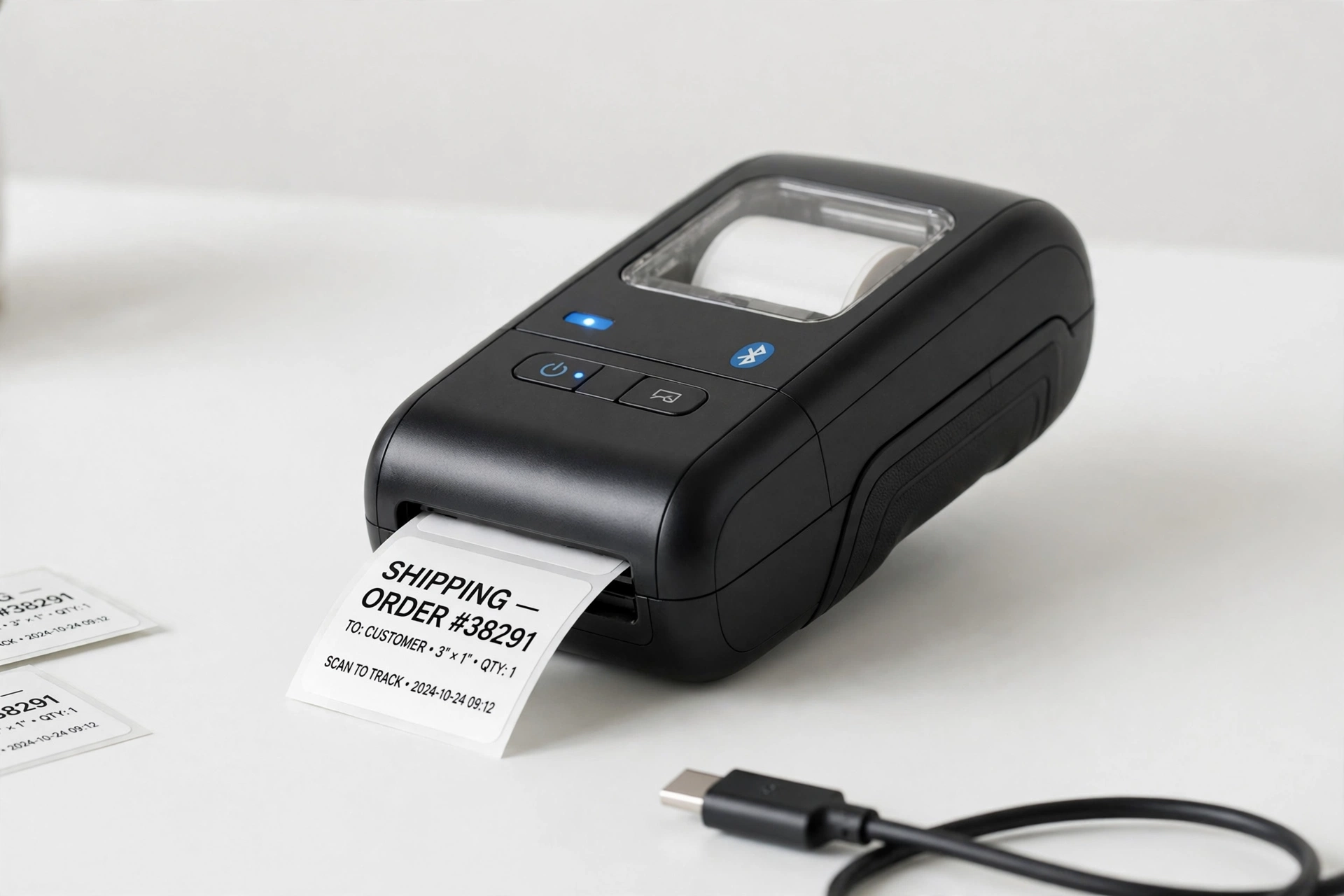
The Marklife P50 Mini Thermal Label Printer sits right in the middle: it is a palm-sized, battery-powered Bluetooth label maker that prints without ink or toner. Here is a detailed breakdown of its print quality, label width compatibility, app workflow, and real-world limitations so you can decide if it fits your workflow.
Technical Specifications at a Glance
| Specification | Marklife P50 Details | Practical Impact |
|---|---|---|
| Printing Technology | Direct Thermal (No ink or toner needed) | Zero ink cartridge replacement costs; prints only in black on thermal stickers. |
| Print Resolution | 203 DPI | Crisp for text, barcodes, QR codes, and simple line icons; not meant for photos. |
| Supported Label Width | 15mm to 50mm (0.59″ to 1.96″) | Wider than standard 12mm tape makers—can print square address, price, and jar labels. |
| Connectivity | Bluetooth (iOS & Android via Marklife App) | Quick phone setup; no native USB plug-and-play driver for older PCs without setup. |
| Battery Capacity | 1200mAh Rechargeable (USB-C) | Prints roughly 4–5 full rolls of labels on a single charge. |
Why the 50mm Width Makes the Marklife P50 Stand Out
Many entry-level pocket label makers only accept narrow 12mm or 15mm strips—fine for a single line of text on a notebook spine, but too cramped for a shipping address, a multi-line pantry label, or a product barcode sticker.
Because the Marklife P50 supports roll widths anywhere from 15mm up to 50mm using an adjustable internal paper guide, you can switch between:
- 40x30mm rectangular stickers for spice jars, expiry dates, and storage boxes.
- 50x50mm square or round stickers for small-business brand logos, QR codes, and thank-you seals on bakery or craft boxes.
- Cable wrap labels for organizing router wires, phone chargers, and studio gear.
Setting Up the Paper Roll (Avoiding the #1 Beginner Mistake)
The most common complaint from first-time users of the Marklife P50 is that the printer feeds out blank stickers or stops after one label. Almost every time, this comes down to two quick setup steps:
- Printing Side Orientation: Thermal paper only reacts to heat on one side. Make sure the sticker side is facing the thermal printhead as shown on the inside diagram of the compartment.
- Gap Calibration: After snapping the cover shut, press the power/feed button once so the printer detects the gap between two die-cut stickers. In the Marklife app, select the exact millimeter dimensions printed on the inside core of your sticker roll (e.g.,
40x30mm) so your text centers properly.
Pros and Cons of the Marklife P50
Strengths (Pros):
- Zero Ink Costs: Because it uses heat-sensitive thermal stickers, you never buy ink ribbons or cartridges.
- Wide 50mm Roll Support: Handles multi-line labels, QR codes, SKU barcodes, and round stickers that narrow tape printers cannot fit.
- Water- and Oil-Resistant Stickers: Standard Marklife thermal sticker rolls are laminated against water splashes and tearing, making them durable on kitchen jars and cosmetic bottles.
- Portable USB-C Charging: Fits in a drawer or bag and charges with a standard USB-C cable.
Limitations (Cons):
- Monochrome (Black) Text Only: Like all direct thermal printers, it prints black text and icons on whatever color sticker roll you load (white, clear, pastel, or patterned). It cannot print multi-color graphics.
- Heat & Direct Sunlight Sensitivity: Do not place direct thermal labels on items exposed to high heat (like a car dashboard in summer) or rub them with alcohol, as extreme heat or solvents will darken or fade thermal coating over time.
- App Learning Curve: While the core label editor works without mandatory subscriptions, take 10 minutes to explore the built-in fonts, borders, and barcode tools before your first print job.
Verdict: Who Should Buy the Marklife P50?
If you run a home-based craft, baking, or resale business and need clean barcode, price, or ingredient labels—or if you want to organize a pantry, home office, and kids’ school supplies with multi-line stickers—the Marklife P50 is a versatile, low-maintenance tool. Just remember to order 2–3 extra rolls of 40x30mm or 50x30mm thermal stickers upfront so you don’t run out right after finishing your first organizing project.
Frequently Asked Questions (FAQs)
1. Can I use generic thermal label rolls in the Marklife P50?
Yes, as long as the roll width is between 15mm and 50mm, the outer roll diameter fits inside the chamber, and it uses gap-type or continuous direct thermal paper. You simply enter the custom label width and height in the app.
2. Does the Marklife P50 print shipping labels for courier parcels?
It can print small address labels and return stickers up to 50mm (2 inches) wide, which works well for small envelopes and product tags. However, standard large courier waybills require a 4×6-inch (100x150mm) desktop thermal shipping printer.
3. How long do the printed labels last?
Indoor use on jars and boxes: 1–2 years easily. Avoid direct sunlight and heat sources for maximum longevity. For outdoor use, look for UV-resistant thermal rolls specifically rated for exterior application.
💡 Pro Tip: Buy a multi-size starter pack of rolls (15mm, 30mm, 40mm, 50mm) to test which width works best for your specific labeling needs before committing to bulk rolls.